IS7 Performance Guide: Tips for a Smooth and Stable Experience
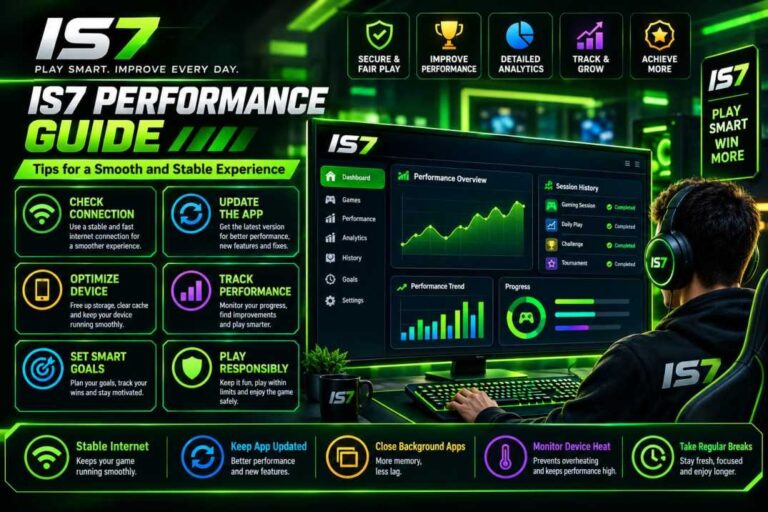
The IS7 experience can be more convenient and enjoyable when the app runs smoothly on your device. Whether you use IS7 for browsing available features, exploring different sections, managing your account, or checking the latest updates, good device performance plays an important role. Slow loading, unexpected errors, connection interruptions, and outdated app versions can affect how comfortably you use the platform.
This IS7 Performance Guide explains practical ways to improve app stability, reduce common technical problems, and maintain a better experience on Android devices. The recommendations focus on simple steps that most users can follow without advanced technical knowledge. From checking your internet connection to managing storage and updating the app, each suggestion can help you identify possible performance issues.
Performance depends on several factors, including your device specifications, network quality, operating system, and the app version you use. Therefore, no single method guarantees perfect performance in every situation. Following these 13 useful tips can help you troubleshoot common issues and make informed decisions when using IS7.
Check Your Internet Connection
A reliable internet connection is one of the most important requirements for a stable IS7 experience. If pages take too long to open, content fails to load, or your session disconnects unexpectedly, the problem may be related to your network rather than the app itself.
Start by opening another trusted website or app to check whether your internet is working correctly. If other services are also slow, investigate your Wi-Fi or mobile data connection before changing your IS7 settings.
Useful tips:
Switch between Wi-Fi and mobile data to compare performance.
Move closer to your Wi-Fi router if the signal is weak.
Pause large downloads or streaming activities.
Enable and disable airplane mode to refresh the mobile connection.
Restart your router if several devices experience connection problems.
A consistent connection can reduce loading interruptions and help IS7 respond more reliably.
Keep the IS7 App Updated
Using an outdated version of IS7 may contribute to compatibility issues, unexpected errors, or missing features. App updates can include bug fixes, security improvements, interface changes, and adjustments for newer Android versions.
Before installing an update, verify that it comes from a source you trust. If IS7 is distributed through an official website or app store, check the available version information and installation instructions carefully. Do not assume that every website advertising an IS7 latest version provides an authentic or safe file.
Follow these steps:
Check the currently installed app version.
Visit the verified distribution source.
Review the release information, if available.
Confirm that your device meets the stated requirements.
Follow the recommended update procedure.
Keeping the IS7 app updated can improve compatibility, although an update may not resolve problems caused by weak internet or insufficient device resources.
Restart Your Device Regularly
A simple device restart can sometimes resolve temporary performance problems. Android phones may keep background processes active for extended periods, and temporary software issues can affect how applications respond.
If IS7 becomes unresponsive, loads slowly, or closes unexpectedly, save any important information first. Close the app and restart your phone if the problem continues. After the device turns back on, open IS7 again and check whether its performance has improved.
Recommended actions:
Restart your phone when repeated slowdowns occur.
Close applications that are no longer needed.
Allow the operating system to finish starting before reopening IS7.
Check whether the issue returns after using the app for a while.
Restarting is a basic troubleshooting step, not a permanent solution for every problem. If the same error continues, investigate storage, updates, network conditions, or possible service interruptions.
Free Up Storage Space
Insufficient storage can affect overall Android performance and interfere with app updates, temporary files, and normal system operations. If your phone is nearly full, you may notice slower responses or difficulties installing a newer IS7 version.
Open your device settings and review the available storage. Remove unnecessary downloads, duplicate photos, unused applications, and other files you no longer need. Back up important information before deleting personal files.
Storage management checklist:
Review the largest files on your device.
Remove unused apps safely.
Delete unnecessary downloaded documents.
Move supported personal files to a trusted backup location.
Keep enough free space for system operations and updates.
Avoid deleting unfamiliar system folders or files simply because they occupy space. Careful storage management helps maintain general device stability and provides room for future updates.
Clear the IS7 App Cache When Necessary
Temporary cached data helps applications load certain resources more efficiently. However, damaged or outdated cache files can occasionally contribute to display errors, loading problems, or unexpected behavior.
On many Android devices, you can review the app’s storage settings and clear its cache. The exact menu names may differ according to the manufacturer and Android version.
How to clear the cache:
Open your phone’s Settings.
Select Apps or App Management.
Find IS7 in the installed application list.
Open Storage or Storage Usage.
Select Clear Cache, if the option is available.
Reopen the app and check its performance.
Be careful not to select Clear Data or Clear Storage unless you understand the consequences. Those options may remove local settings or sign you out. Clearing the cache may help with certain temporary issues, but it will not fix every performance problem.
Close Unnecessary Background Applications
Running several demanding applications simultaneously can place extra pressure on your phone’s memory and processor. This may lead to slower responses, delayed loading, or frequent app reloads, especially on devices with limited resources.
Before using IS7, close applications that you do not need. Video editing tools, large games, heavy browser sessions, and other resource-intensive apps may consume significant memory.
Try these simple practices:
Close unnecessary applications from the recent-apps screen.
Avoid running several demanding tasks simultaneously.
Stop downloads that are not currently required.
Check your phone’s battery and performance settings.
Keep essential system services enabled.
You do not need to force-stop every application on your phone. Android manages many background processes automatically, and aggressively closing everything can sometimes reduce efficiency. Focus on applications that are actively consuming resources or causing problems.
Check Android Compatibility
The IS7 app may perform differently across devices because Android versions, processor capabilities, memory capacity, and screen configurations vary. An application that works correctly on one phone may encounter compatibility issues on another.
Before installing or updating IS7, review its stated Android requirements and compare them with your device specifications. You can usually find your Android version under Settings, followed by About Phone or Software Information.
Compatibility checks include:
Confirming the supported Android version.
Reviewing available storage and memory.
Installing relevant operating system updates.
Checking whether your device architecture is supported, if specified.
Reading any published compatibility guidance.
Avoid installing unofficial modified versions to bypass compatibility restrictions. If IS7 does not support your device, contact the relevant support channel or wait for a compatible release instead of using an unknown installation package.
Monitor Battery Saver and Performance Settings
Battery-saving modes can limit background activity, reduce processing performance, or restrict network access for selected applications. Depending on your phone and configuration, these restrictions may affect notifications or certain IS7 functions.
If the app works normally while your phone is charging but becomes less responsive in battery-saving mode, review the relevant settings. Check whether IS7 has been placed under a restrictive background battery policy.
What you can do:
Check whether Battery Saver is enabled.
Review the app’s battery usage settings.
Avoid unnecessary restrictions on functions you actively use.
Keep your phone adequately charged during important tasks.
Watch for overheating, which can cause automatic performance reductions.
Do not disable all battery protections without a clear reason. The best configuration balances responsive performance, battery life, and device safety.
Use a Stable and Secure Network
Network quality involves more than internet speed. High latency, frequent packet loss, congested Wi-Fi channels, and unstable mobile coverage can interrupt online sessions even when a speed test appears reasonable.
If IS7 repeatedly disconnects, compare the results across different trusted networks. For example, test your normal Wi-Fi connection and then try mobile data in an area with reliable coverage.
Network improvement tips:
Use a password-protected Wi-Fi network.
Avoid crowded or weak wireless connections when possible.
Keep your router firmware updated according to its manufacturer’s guidance.
Disable unfamiliar proxy or VPN configurations if they are causing connection issues.
Never install a certificate or network profile from an untrusted source just to make the app connect.
A stable connection can improve responsiveness, but performance may still be affected by the platform’s servers or scheduled maintenance.
Troubleshoot Login and Loading Problems
Sometimes an IS7 performance issue appears during login rather than during general app use. Incorrect credentials, expired sessions, connection interruptions, or temporary service problems may prevent the account screen from loading correctly.
First, verify that your internet connection works and that you are using the correct login page or app. Enter your credentials carefully, paying attention to uppercase letters and accidental spaces. If the platform provides a password recovery process, use the verified procedure rather than relying on third-party services.
If login fails:
Check your network connection.
Confirm that the login details are correct.
Close and reopen IS7.
Check for an available app update.
Look for a service notice from the verified provider.
Contact support if the issue persists.
Never share passwords, one-time verification codes, or recovery information with strangers. Repeatedly attempting to log in may not help when the underlying cause is a service outage or account restriction.
Protect Your Device From Unsafe Downloads
App safety is an important part of maintaining a stable IS7 experience. Files downloaded from unknown websites may contain unwanted software, modified components, or code that affects device performance and privacy.
If you need an IS7 APK for Android, verify the source before downloading anything. A professional-looking website, positive comments, or a claimed latest-version label does not prove that a file is authentic.
Before installing an APK:
Prefer a verified official distribution source.
Review the developer or publisher information.
Check requested permissions for relevance.
Use Google Play Protect or other reputable security tools where available.
Avoid modified APKs, unknown configuration profiles, and suspicious update links.
Remove an installation file if its source or integrity cannot be established.
An APK that installs successfully is not automatically safe. Security checks help reduce risks that could otherwise cause unwanted background activity, data exposure, or device instability.
Review App Permissions and Device Settings
Applications may request access to certain device functions, such as notifications, storage, camera, or location. The appropriate permissions depend on the app’s actual features. Unnecessary permissions should not be granted simply because a prompt appears.
If IS7 is behaving unexpectedly, review its permissions in your Android settings. Compare each requested permission with the feature that requires it, and revoke access that is unnecessary or inappropriate.
Permission management tips:
Read each permission request before accepting it.
Grant access only when it is required for a feature you want to use.
Review notification settings if alerts are missing.
Check whether data-saving settings restrict background connectivity.
Revisit permissions after major app or Android updates.
Restricting a permission may prevent a related feature from working. If that happens, review the app’s explanation and make an informed choice rather than granting every permission automatically.
Monitor Updates and Contact Support When Needed
If you have tried the previous IS7 performance tips and the app remains unstable, collect useful information before seeking help. A clear description of the issue makes it easier to identify whether the cause may involve your device, network, account, app version, or the platform itself.
Record when the problem occurs, what you were doing, and any error message displayed. You can also note your Android version and the IS7 app version. Avoid including passwords, verification codes, payment details, or other sensitive information in screenshots or support messages.
Prepare the following details:
The device model and Android version.
The installed IS7 version, if known.
The approximate time the problem occurred.
Whether the issue affects other apps.
The exact error message or a screenshot with personal details removed.
The troubleshooting steps you have already tried.
Use a verified support channel and follow its instructions. If the platform is experiencing a service interruption, waiting for the provider to resolve it may be more effective than repeatedly reinstalling the app.
Frequently Asked Questions About IS7 Performance
1. Why is IS7 running slowly on my phone?
Possible causes include a weak internet connection, limited storage, high background resource usage, an outdated app version, or a temporary service problem. Check these factors one at a time to identify the likely cause.
2. How can I improve IS7 performance on Android?
Start by checking your connection, freeing storage space, closing unnecessary demanding apps, and installing verified updates. You can also clear the app cache if temporary data appears to be causing problems.
3. Is clearing the IS7 cache safe?
Clearing the cache is generally a low-risk troubleshooting step because it removes temporary files. However, clearing app data or storage is different and may remove local settings or sign you out.
4. Should I download the latest IS7 APK from any website?
No. Use a verified distribution source whenever possible. Unknown APK files may be modified or unsafe, even if a website describes them as the newest release.
5. What should I do if IS7 continues to crash?
Restart your device, check compatibility and available storage, and confirm that you are using a trusted app version. If the problem persists, document the error and contact the verified support channel.
Conclusion
Maintaining a smooth IS7 experience starts with a well-maintained device, a reliable internet connection, sufficient storage, and careful app management. Simple actions such as checking updates, restarting your phone, clearing temporary cache files, and reviewing permissions can help resolve many common technical issues.
However, performance problems do not always originate on your device. Server interruptions, account restrictions, compatibility limitations, and software defects may require assistance from the platform provider. Troubleshoot methodically instead of making several changes at once, and avoid unofficial files or risky fixes that promise instant results.
Use this IS7 Performance Guide as a practical checklist whenever you experience slow loading, connection errors, or unexpected app behavior. Prioritize device security, protect your account information, and install updates only from sources you can verify. These habits can support a more consistent and secure experience over time.
18+ Notice
This website is not the official IS7 website and is not affiliated with any official gaming platform. We do not promote, endorse, or encourage online gaming or real-money gaming apps. Content is provided for general informational purposes only. Adults aged 18 and above should follow applicable local laws and regulations.